

Download Tutorial
Step 1 — Go to the Games page and click a download link
Head over to the Games page on this site. Browse the list of downloadable games and click the download link for whichever game you want to play.
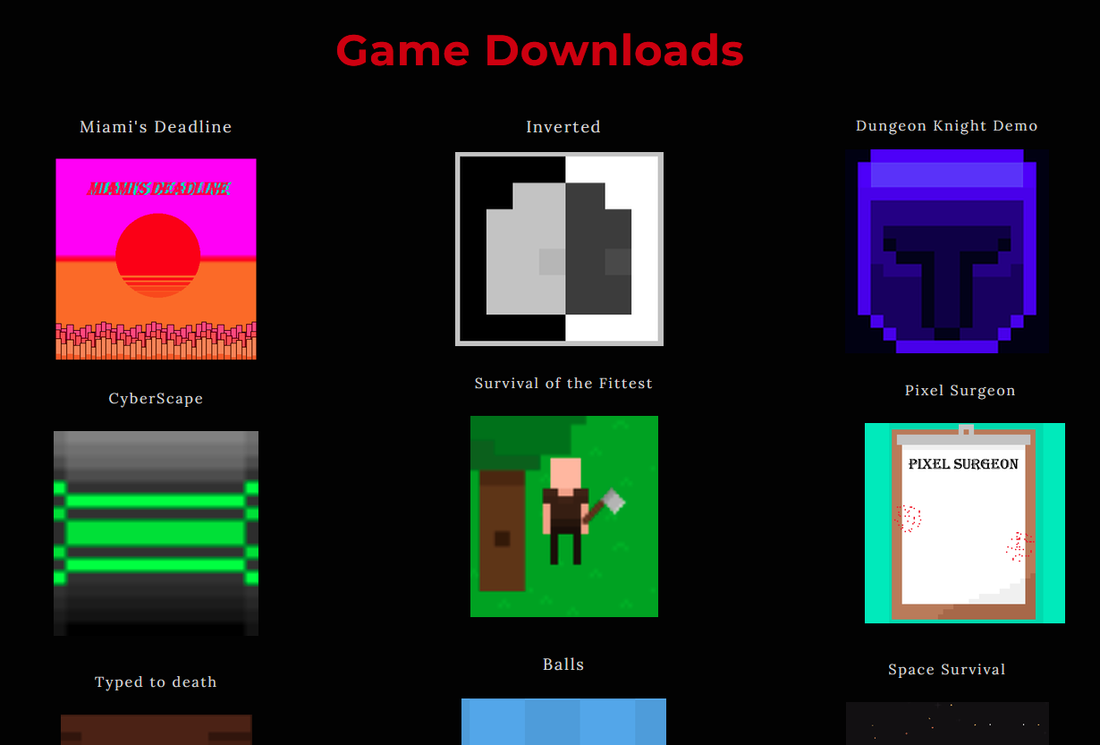
Step 2 — You will be taken to Google Drive
Clicking the link will open the Google Drive file viewer. This is where the game file is stored. You should see the file name and a preview of its contents.
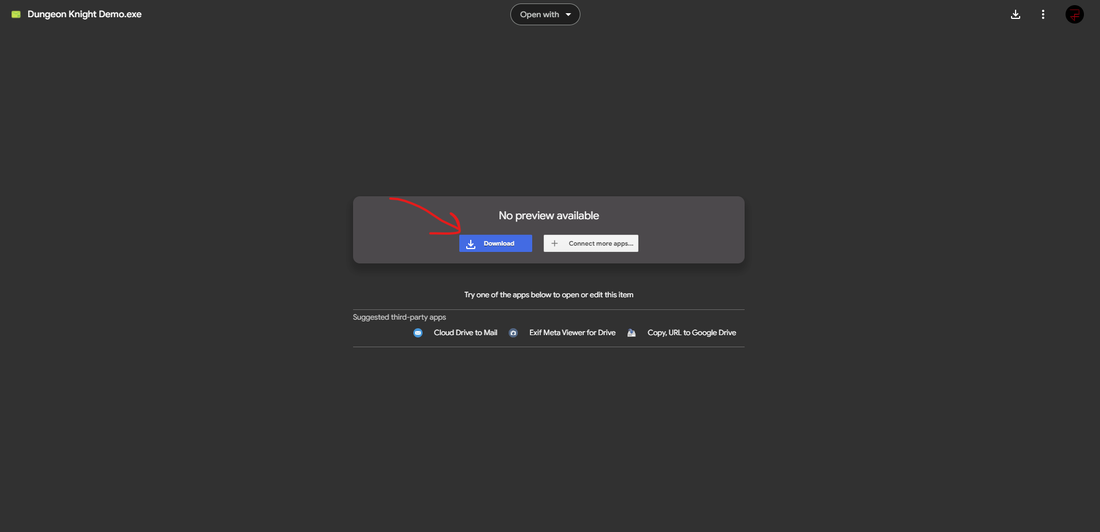
Step 3 — Click the download button
Look for the download icon (↓) near the top right of the Google Drive page. Click it to start downloading the file to your computer.
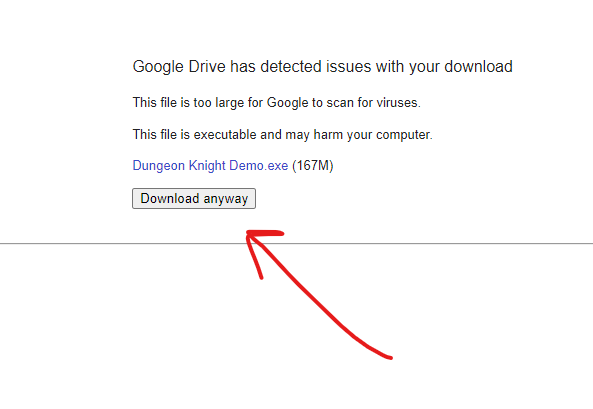
Step 4 — Confirm the download if prompted
Google Drive may show a warning prompt asking you to confirm the download. This is normal for large files. Click Download anyway to proceed.
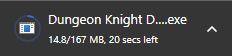
Step 5 — Wait for the download to complete
Your browser will begin downloading the file. You can track progress in your browser’s downloads bar. The file is a .zip archive, so it may take a moment depending on the game size.

Step 6 — Locate the downloaded ZIP file
Once the download finishes, open your Downloads folder and find the .zip file. It will be named after the game you downloaded.
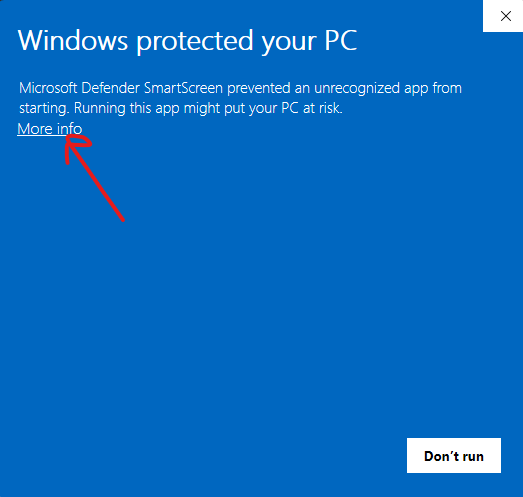
Step 7 — Extract the ZIP file
Right-click the .zip file and select Extract All… (on Windows). On Mac, simply double-click the file. This will create a new folder with the game files inside.
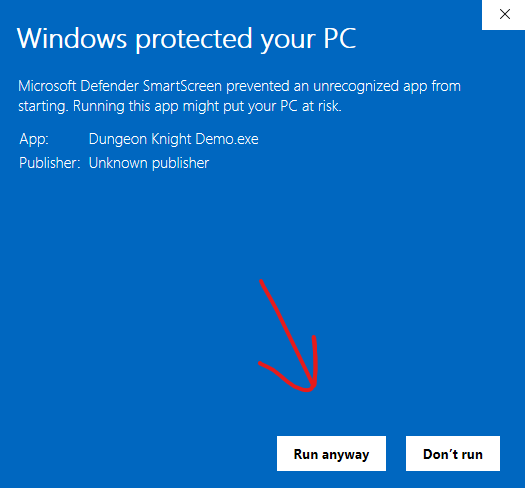
Step 8 — Open the extracted folder
Open the newly extracted folder. Inside you’ll find the game files — look for the executable (.exe) file.
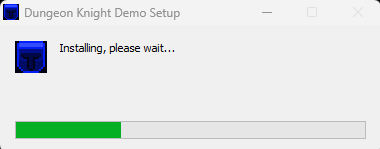
Step 9 — Run the game and enjoy!
Double-click the .exe file to launch the game. Have fun!

Note: Some games are hosted on itch.io instead of Google Drive. For those, click the link on the Games page and use the Download button on the itch.io page.